
Connect an AI app
Connect Claude, ChatGPT, Cursor, VS Code, and other AI apps to your workspace with the Andesine MCP server.
AI apps can use your workspace through the Andesine MCP server. They can search and read entries, write and edit them, manage versions and schemas, and publish, with your permissions. Changes that an AI app makes appear live for people who edit the same entry, and the app saves a version before its first edit of an entry.
The server address is:
How connecting works
You add the server address to your AI app.
The app opens Andesine in your browser. Sign in if necessary.
On the Connect page, choose the workspace that the app can use.
Select Enable write access if the app may create, edit, move, publish, and delete content. Without it, the app can only read.
Select Approve.
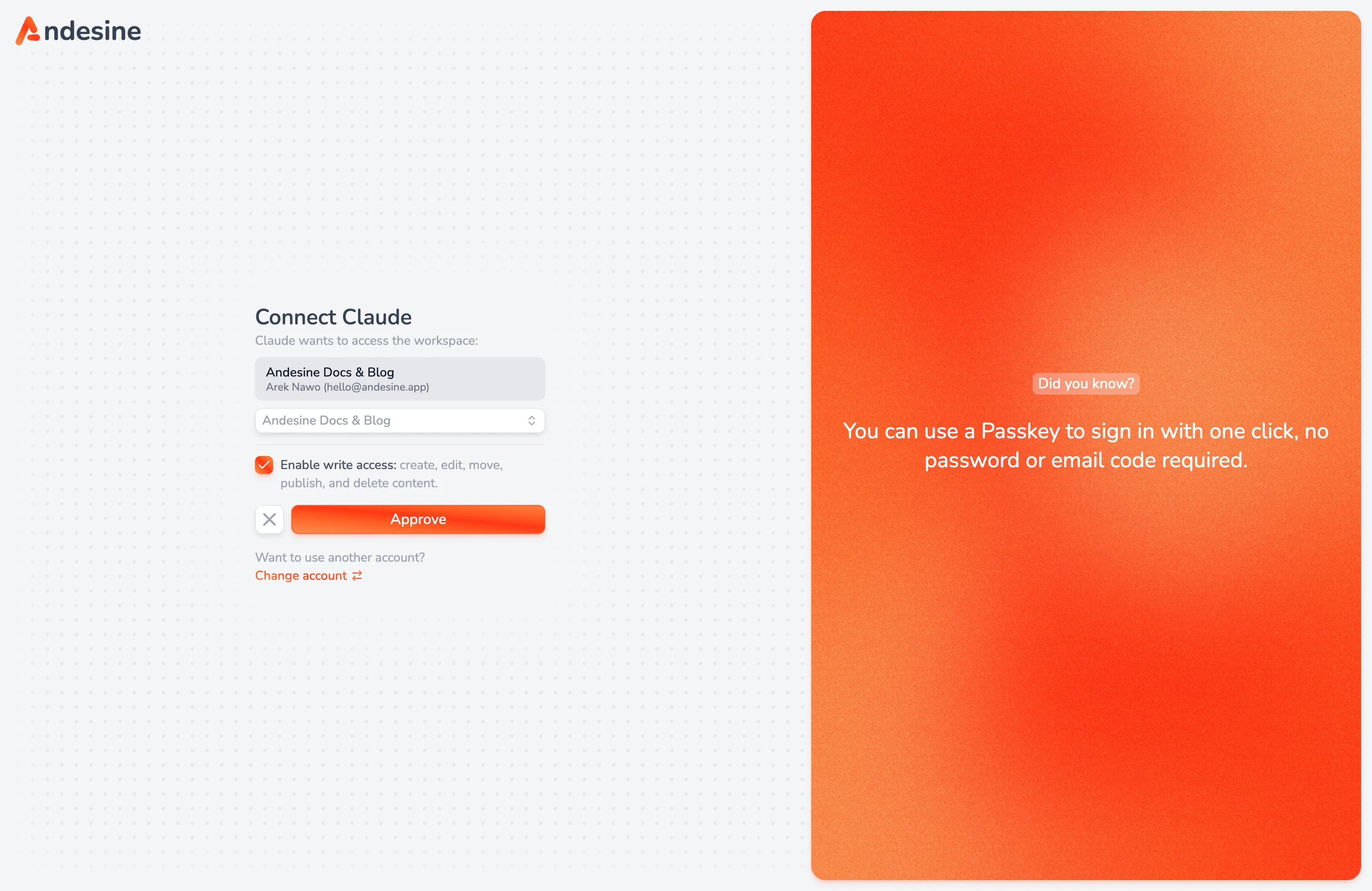
Each connection uses one workspace. To use another workspace, add the server again and choose that workspace. The app can do only what your role allows in that workspace.
Custom connectors can need a paid plan of the AI app. Check the documentation of your app.
Set up your app
In Claude, open Customize → Connectors, select + Add, and select Add custom connector. Type Andesine as the name and https://api.andesine.app/mcp as the URL, then select Continue. Keep the sign-in settings and select Add. To use it in a chat, select +, then Connectors, and turn on Andesine. On Team and Enterprise plans, an owner adds the connector in Organization settings → Connectors first. Members then select Connect.
In ChatGPT on the web, open Plugins, select +, and select Add custom MCP server. Type Andesine as the name and https://api.andesine.app/mcp as the Server URL, and select OAuth authentication. Select I understand and want to continue, then Create as a plugin. Your ChatGPT plan or workspace must allow custom MCP servers.
Open this link to add the server to Cursor: Add Andesine to Cursor. Then select Connect next to the server in the MCP settings.
Add the server to .vscode/mcp.json in your project, then select Start above the server:
Run this command, then run /mcp in Claude Code and select Authenticate:
Install the Andesine extension:
Run:
Connect a fixed workspace
To connect one workspace without the workspace picker, add its ID to the address:
Copy the workspace ID from the address of the app in your browser.
Use an API key
Apps that can send headers can use an API key instead of signing in. Send a secret key as a Bearer token in the Authorization header. The app gets the key's workspace and permissions. Tools that the key's permissions do not allow are not listed. See API overview.
Revoke access
Go to Settings → Personal → Connected apps and select Revoke access next to the app. The app loses access at once.
Usage
Requests from AI apps count as API calls of the workspace. AI apps never use a seat. See Plans and billing.
Next steps
To use Andesine from a coding agent with local files, see Local server and plugin.
For the tools and prompts, see Tools, resources, and prompts.