
Elements
Add components such as callouts, cards, steps, and tabs to your content.
Elements are components in your content, such as a callout, a set of tabs, or a card. Each element has a name, attributes, and optional content inside it. In MDX, an element is a tag:
Andesine stores elements as they are. Your site or app decides how to show each element. For example, the Pages framework and hosted sites render callouts, cards, steps, tabs, and other components.
Add an element
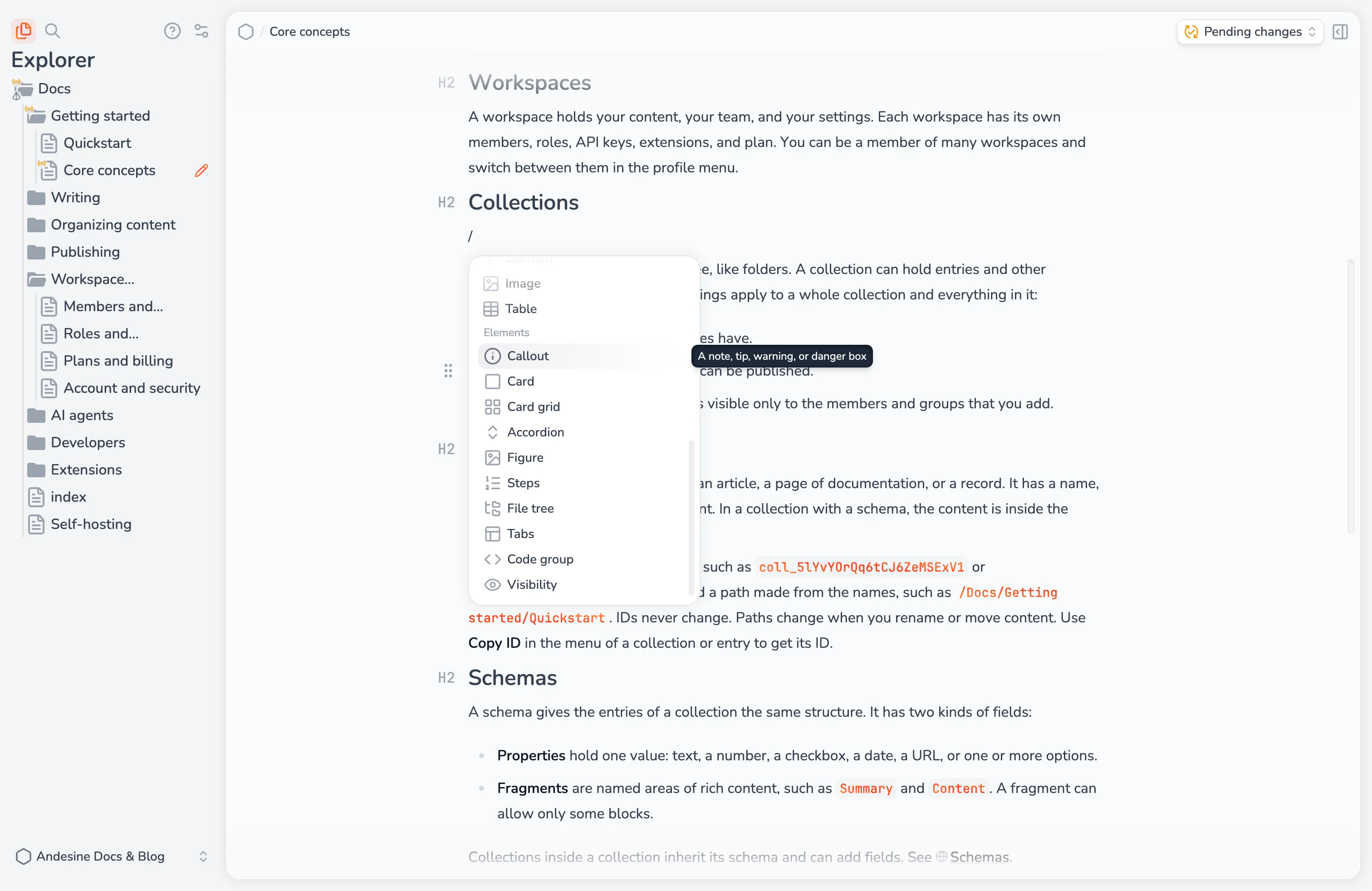
Type / and select a component from the slash menu. Extensions add their components to the menu in groups, so the menu shows the components that your sites support. To add any other element, select Element and type its tag.
Element views and tags
An extension can give an element a view, so it looks in the editor like it does on your site. You edit the content of the element directly in the view. An element without a view shows its tag and its content.
Open the block menu of an element to switch:
Show tags shows the tag, so you can see and edit all attributes.
Show element view shows the view again.
Edit an element
In the block menu of an element:
Edit tag opens the tag for editing. Change the name or the attributes, for example
type="warning".Format tag formats the tag (⌘⇧F).
Add content adds content inside an element that has none.
Duplicate adds a copy of the element below it.
Unwrap removes the element and keeps its content.
Attributes that link to a page accept an entry, a URL, or a path such as /docs/. A link to an entry stays correct when you move or rename the entry.
If an element's content is not allowed where it is, the block menu shows Clean up content or Clean up placement to fix it.
Elements in other formats
The API, the SDK, and MCP return elements as MDX tags. To get elements in other formats, such as Markdoc tags or HTML, or to map each element to your own output, use the converters. See Converters.