
Use extensions
Install, configure, update, and remove extensions in a workspace.
Extensions add features to a workspace. An extension can add:
Panels next to the editor, such as the GitHub Sync status.
Pages in the menu or in the menu of a collection or entry, such as the settings of a hosted site.
Element views that show components in the editor as they look on your site.
Block actions in the block menu of the editor.
Webhooks and a backend service that work with your content.
Official extensions include Andesine Pages and GitHub Sync.
Install an extension
Go to Settings → Extensions → Catalog. You need a role with the Extensions permission.
Select an extension in Available extensions.
Read What it can do: the permissions that the extension asks for, such as reading collections or publishing. If it uses an outside service, External service shows its address.
Install the extension, and fill in its Settings if it has any.
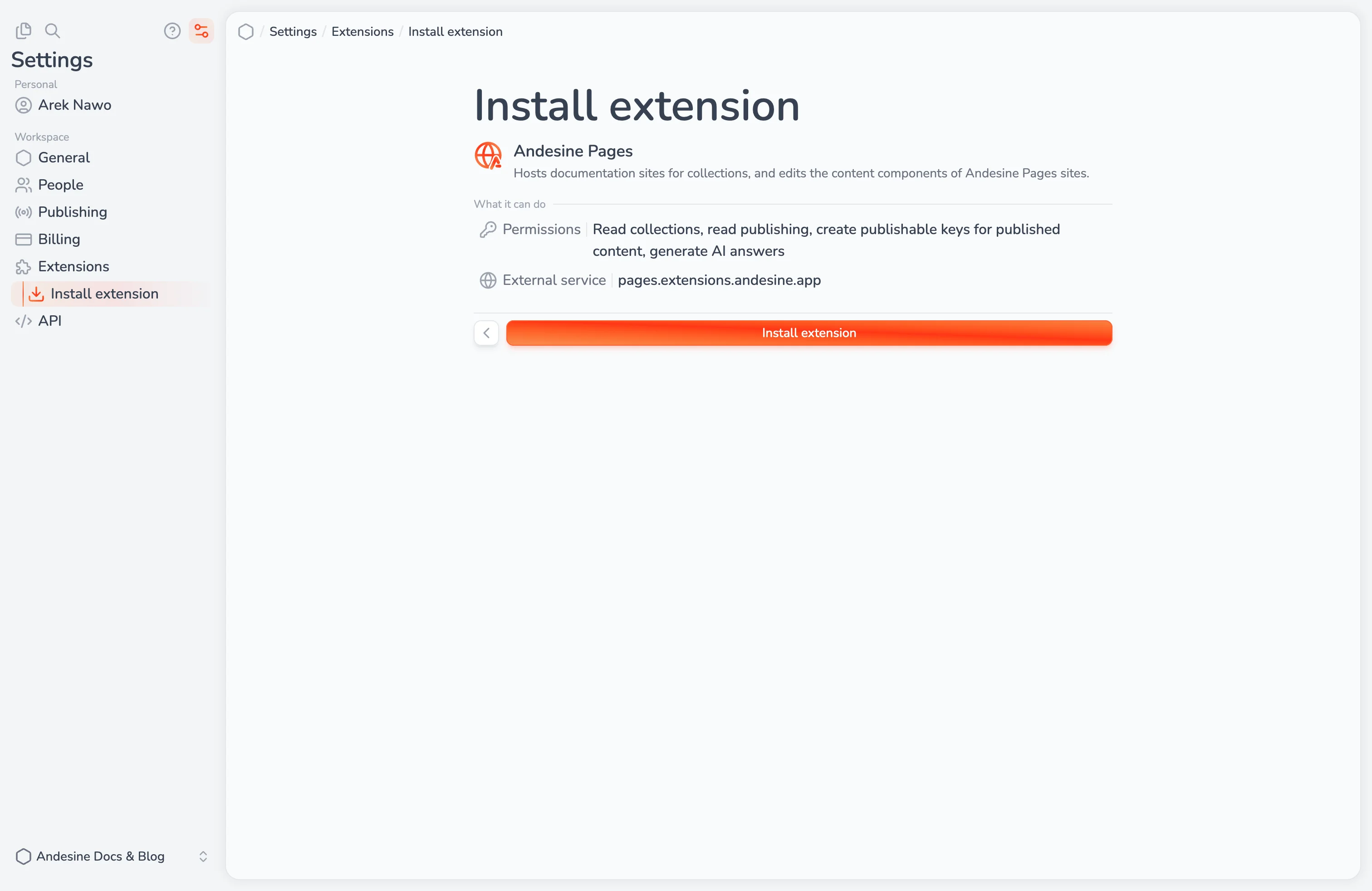
An extension can do only what its permissions allow, and never more than the member who uses it. A workspace can have up to 20 extensions.
Manage installed extensions
In Settings → Extensions → Installed:
Disable turns an extension off and keeps its settings and data. Enable turns it on again.
Settings changes its settings.
Uninstall removes the extension and deletes its settings and stored data.
The details of an extension show its Content views, the element views that it adds, and its Webhooks. Select Replace view to use another extension's view for an element.
Updates
Extensions update automatically. If an update asks for more permissions, a new external service, or new web addresses, Andesine disables the extension and shows An update needs your approval. A member with the Extensions permission, who has all the permissions that the extension asks for, selects Allow and enable to turn it on again. Updates that remove permissions apply at once.
If a version of an extension is withdrawn, for example because of a problem, Andesine moves the workspace to the newest version or to the replacement version, or disables the extension if there is neither.