
Publishing and channels
Choose which version of your content readers see, review pending changes, and publish to more than one channel.
Editors work on the current content of entries. Readers see the published content. Publishing copies the content that you choose to a channel, so you can keep editing without changing what readers see.
Published content is what these read:
The API and SDK with a publishable key, for example on your website.
Hosted sites and sites made with the Pages framework.
Webhooks for publishing events.
Enable publishing
Publishing is set for each collection. Open the menu of a collection and select Enable publishing. The collection and everything in it can then be published. Select Disable publishing to stop publishing the collection.
Publish
You can publish at different levels:
An entry: open the menu of the entry, or the publish menu in the editor, and select Publish current.
A collection: open the menu of the collection and select Publish collection to publish all its pending changes.
A version: in the Versions panel, select Publish on any version.
Many items: select them in the explorer, then publish them together.
The publish menu of an entry shows its status: Published, Pending changes, or Not published, and the Assigned version on the channel.
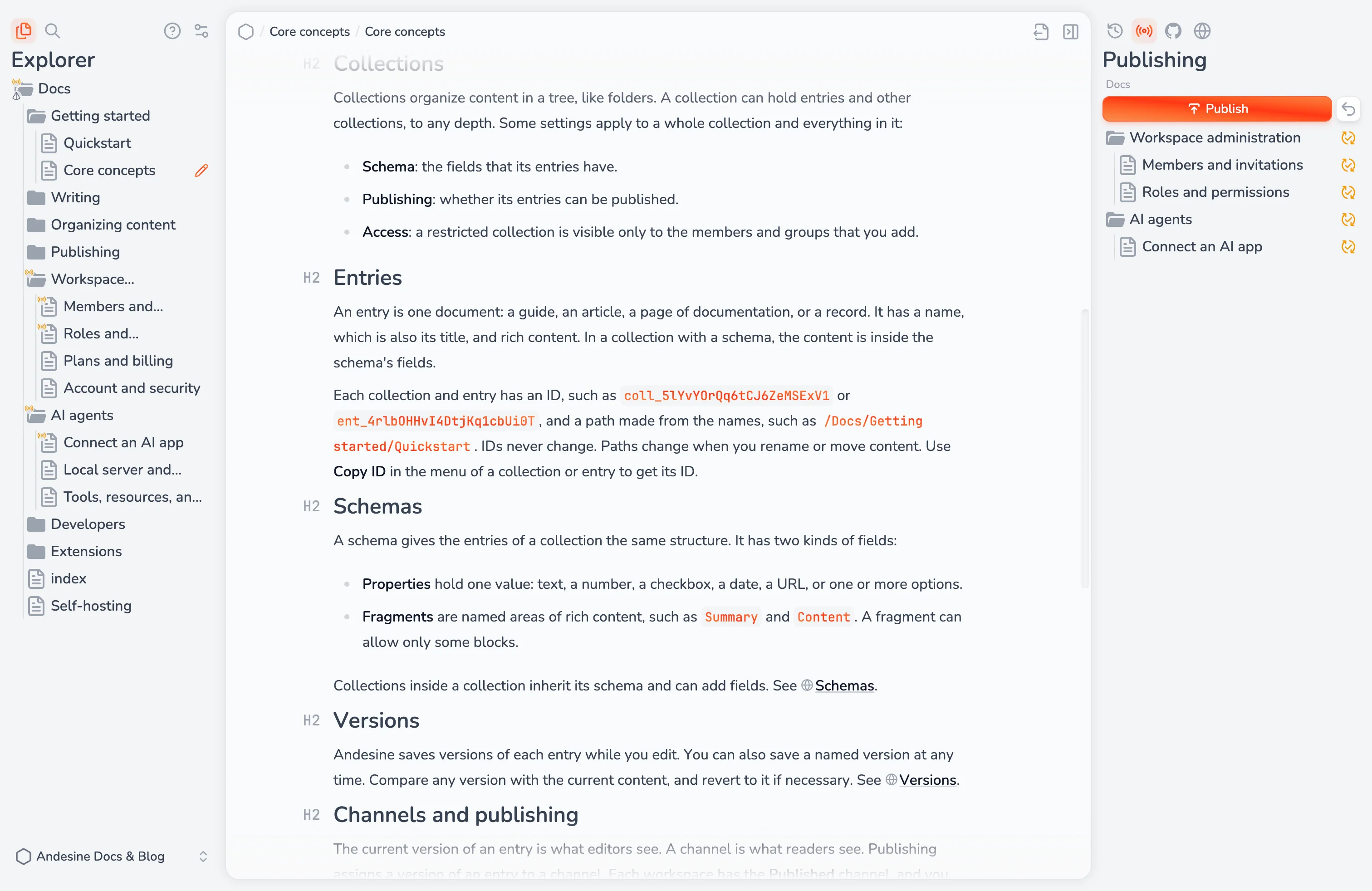
Review pending changes
Select Publishing in the panel on the right to see all changes that are not published yet:
Status | Meaning |
|---|---|
Pending changes | The current content differs from the published content. |
Pending removal | The item was deleted, and the deletion is not published yet. |
Moved, pending changes | The item was moved, and the move is not published yet. |
Pending structure changes | The collection was renamed, moved, or reordered. |
Select the changes that you want and select Publish, or Unpublish to remove items from the channel. Select Revert all pending changes to make the current content the same as the published content again.
All changes that you publish together go to the channel at the same time, so readers never see half of an update.
Unpublish and revert
Unpublish removes an entry or a collection from the channel. The current content does not change.
Revert pending changes replaces the current content with the published content. Use it to undo edits, or to restore a published entry that you deleted.
Channels
Each workspace has the Published channel. Add more channels to publish different versions of the same content, for example a Staging channel for a preview site.
Go to Settings → Publishing → Channels and select Create channel. Each channel has a code, such as staging, that you use in the API. Select Copy channel code to copy it.
To switch the channel that the explorer and the publishing panel show, open the menu at the top of the explorer and select Channel: <name>. This item shows only when the workspace has more than one channel.
When you delete a channel, all content assigned to it is removed from that channel. You cannot delete the Published channel.
Publishable keys
Websites read published content with a publishable key. Go to Settings → Publishing → Sites to create one. A publishable key can only read and search published content, and get AI answers when you allow them, so you can use it in browser code. See API overview.