
Account and security
Sign-in methods, passkeys, multiple accounts and workspaces, connected apps, and deleting an account or workspace.
Your account is personal and can belong to many workspaces. Go to Settings → Personal to manage it.
Sign in
Andesine has no passwords. Sign in with one of these:
Continue with Google or Continue with GitHub.
Email: Andesine sends a one-time code to your email address.
Passkey: sign in with one click, using your device's biometrics or a hardware security key.
Add a passkey after your first sign-in to sign in faster.
Passkeys
Go to Settings → Personal → Security → Passkeys and select Add a passkey. Follow the steps of your browser or device. You can Rename a passkey, for example Work laptop, or Delete it.
Profile
In Settings → Personal → Profile, set your Full name and profile image. Your name shows in all your workspaces.
Workspaces and accounts
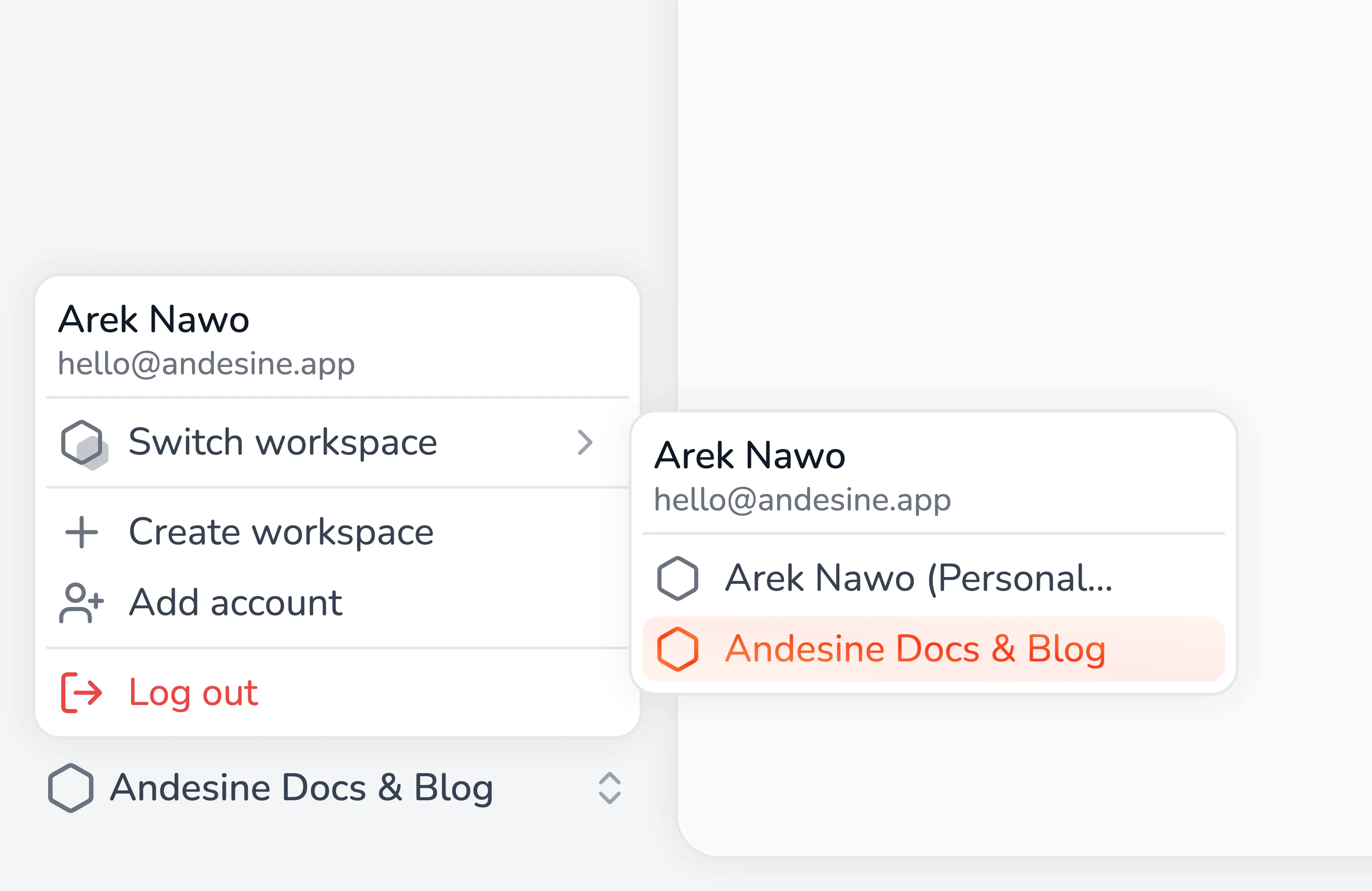
Open the profile menu, which shows your name and image:
Switch workspace opens another workspace that you are a member of.
Create workspace creates a new workspace, with you as its admin.
Add account signs in with another account, such as a work account, without signing out. Switch between accounts in the same menu.
Log out signs out of the current account.
Connected apps
Settings → Personal → Connected apps lists the CLI, MCP clients, and other apps that you connected to your account, and the workspace that each one can access. Select Revoke access to disconnect an app at once. See Connect an AI app.
Delete your account
Go to Settings → Personal → Danger zone and select Delete account.
Workspaces where you are the only admin are deleted for all their members, and their subscriptions are cancelled. To keep a workspace, make another member an admin first.
In other workspaces, your membership is removed. The content that you wrote stays, without your name.
Your profile, sign-in methods, and connected apps are deleted.
This cannot be undone.
Delete a workspace
Go to Settings → General → Danger zone and select Delete workspace. All content, versions, images, and settings of the workspace are deleted at once, and the subscription is cancelled. This cannot be undone. Only admins can delete a workspace.
To keep a copy of your content first, use GitHub Sync, the CLI, or the API.