
Versions
See the history of an entry, compare versions, revert, and publish an earlier version.
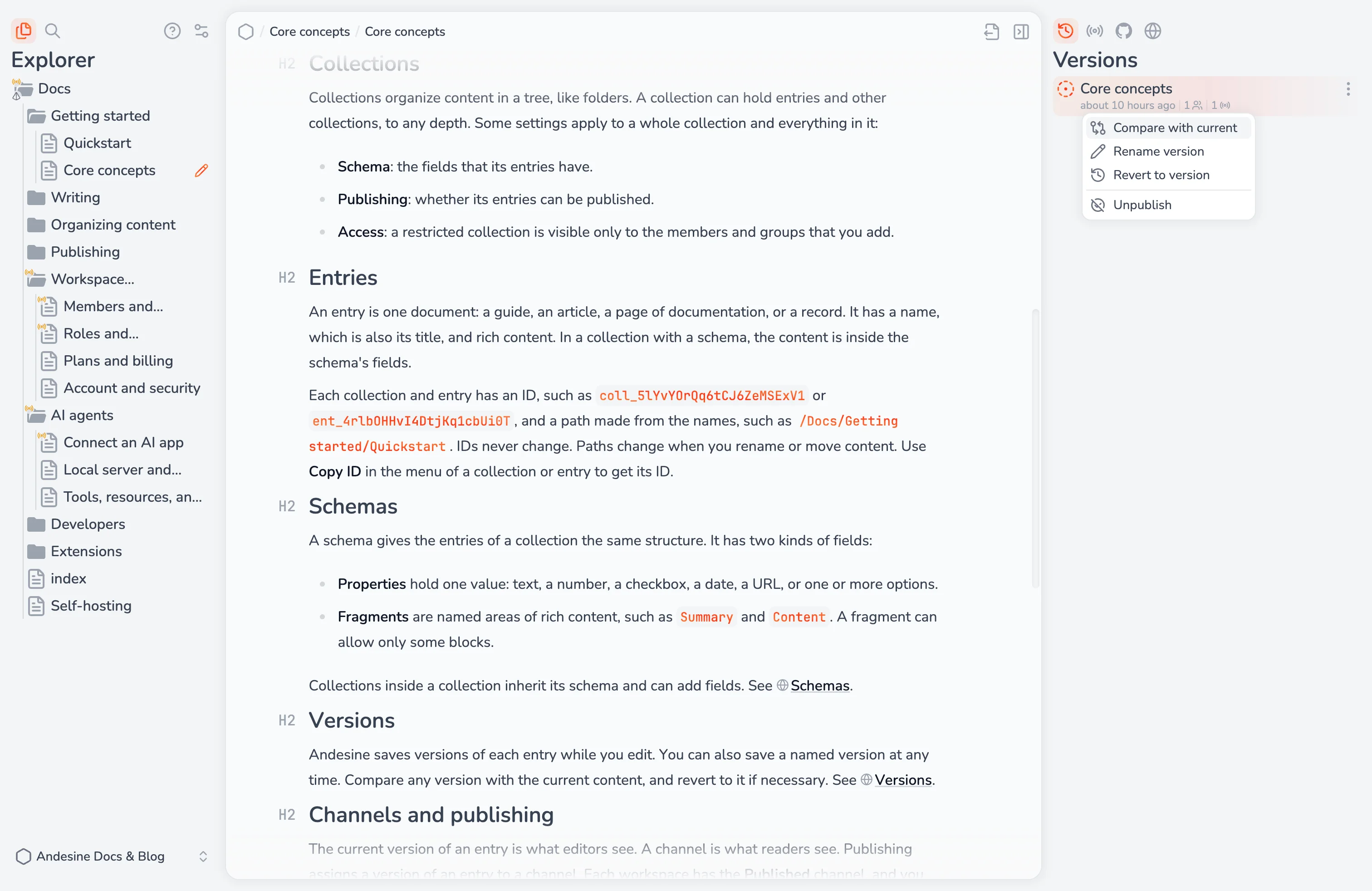
Andesine keeps the history of each entry as versions. Open an entry and select Versions in the panel on the right.
Kinds of versions
Label | Created |
|---|---|
Automatic | While you edit. Andesine creates them as the content changes. |
Manual | When you select Create version. You can give it a name. |
Import | When content comes from an import or a sync, such as GitHub Sync. |
Schema migration | Before a schema change converts the entry. |
Revert | When you revert the entry to an earlier version. |
Each version shows the Contributors: the members who made the changes. Versions that are on a channel show where they are published.
Create a version
Select Create version and type an optional name, such as Reviewed by legal. Manual versions are useful before large changes, and they are not deleted automatically. To change the name later, select Rename version.
Compare
Select Compare with current on a version to see what changed since then. Switch between Show inline and Show side by side. Select Return to current to go back to editing.
Revert
Select Revert to version, then Revert current. The current content of the entry changes to the content of that version. Andesine saves the result as a new version, so you can undo the revert in the same way.
Reverting changes only the current content. It does not change what is published.
Publish a version
Select Publish on a version to publish that version, not the current content. Select Unpublish to remove it from the channel. This is useful to publish a reviewed version while editing continues. See Publishing and channels.
How long versions are kept
Versions | Free plan | Pro plan |
|---|---|---|
Automatic and schema migration versions | 7 days | 30 days |
Manual, import, revert, and published versions | Always | Always |
When a workspace moves from Pro to Free, automatic versions older than 7 days are deleted.