
Editor
Write with blocks, Markdown shortcuts, links to entries, tables, and code blocks.
The editor is a block editor. Each paragraph, heading, list, table, image, or component is a block. Andesine saves your changes as you type, and other editors see them at once.
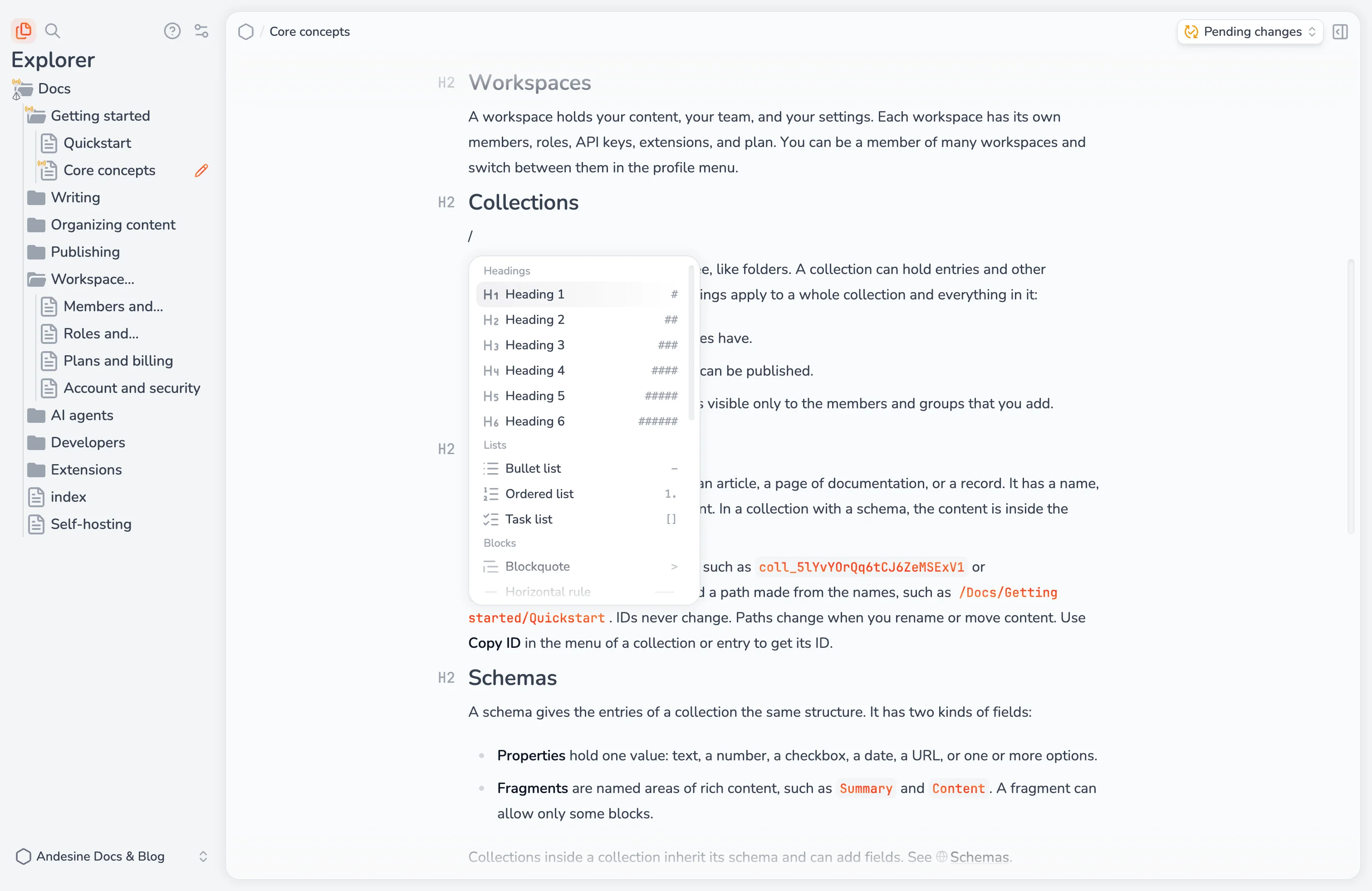
Add blocks
Type / at the start of an empty line to open the slash menu. Type to filter it, then press Enter.
Group | Blocks |
|---|---|
Headings | Heading 1 to Heading 6 |
Lists | Bullet list, Ordered list, Task list |
Blocks | Blockquote, Horizontal rule, Code block, Element, Image (entries only), Table |
Component categories, Elements | The components that your extensions add, in groups by their category, or in Elements |
Structure, Property | Fragment, and the property types. Only at the top level of entries without a schema, and in the schema editor |
Optional fields | The optional fields of the schema. Only in entries with a schema, outside a fragment |
Markdown shortcuts
Type these at the start of a line:
Type | To get |
|---|---|
| Heading 1 to 6 |
| Bullet list |
| Ordered list |
| Task list |
| Blockquote |
| Horizontal rule |
| Code block |
Format text
Select text to show the formatting menu: Bold, Italic, Strikethrough, Code, Link, Highlight, Subscript, and Superscript. Each common format also has a keyboard shortcut.
Change and move blocks
Open the block menu next to a block to see Block actions:
Turn into changes the block type, for example a paragraph into a heading or a list.
Copy copies the block.
Delete removes the block.
Drag a block by its handle to move it.
Links
Select text, then select Link in the formatting menu. Then search for an entry, or type a URL. Links can use https, http, or mailto.
A link to an entry stays correct when you rename or move the entry. If a linked entry is deleted, or you cannot read it, the link shows Deleted or unreadable entry.
Move the pointer over a link, or put the cursor in it, to see Copy link and Edit link. To remove the link, select Edit link, then Remove link.
Code blocks
Type ``` or select Code block in the slash menu. In the block menu:
Language sets the syntax highlighting. The default is Plain text.
Title adds a file name or label above the code.
Copy code copies the code.
Format code formats the code for languages that support it.
Tables
Select Table in the slash menu. In the block menu, use Add row, Add column, Header row, Header column, and Full width. Open the menu of a cell to add rows and columns above, below, left, or right of it, or to delete rows, columns, or the table.
Task lists
Type [] or select Task list. Select a checkbox to mark a task as done.
Paste content
Paste from web pages, documents, and other editors. Andesine keeps headings, lists, links, formatting, tables, and code. When you copy from Andesine, other apps receive both plain text and formatted text.
Entries with a schema
In a collection with a schema, the content of an entry is inside the schema's fields. Properties show at the top of the entry, and each fragment is a separate area of content. A fragment can allow only some block types, so the slash menu shows only the blocks that the fragment allows. See Schemas.