
GitHub Sync
Sync a collection with Markdown or MDX files in a GitHub repository, in both directions.
The GitHub Sync extension keeps a collection and a folder of Markdown or MDX files in a GitHub repository the same. Use it for docs that build from a repository, such as an Astro, Next.js, or Pages framework site, while your team writes in Andesine.
Andesine to GitHub: each publish to the mapped channel creates one commit with all the changed files.
GitHub to Andesine: each push to the mapped branch updates the entries and publishes them to the channel.
Set up
Install the extension
Go to Settings → Extensions → Catalog and install GitHub Sync.
Enable publishing
Open the menu of the collection and select Enable publishing. The sync uses the nearest collection that has publishing on.
Connect GitHub
Open the GitHub Sync panel of the collection and select Set up sync. Connect your GitHub account and install the GitHub App on the repositories that you want to sync.
Map the collection
Choose the channel, repository, branch, and directory, and the other settings below. Then save the mapping.
Mapping settings
Setting | Description |
|---|---|
Source | The channel. Publishes to it go to GitHub, and pushes from GitHub are published to it. |
Repository | A repository that the GitHub App can access. Private repositories need the Pro plan. |
Branch | The branch that the sync reads and commits to. |
Directory | The folder of the files, such as |
Matching files | For the first sync: keep the GitHub files or the Andesine entries when both exist. |
New files | The format of files for entries created in Andesine: MDX or Markdown. |
Links | How links between files are written: file paths ( |
Navigation files | None, or a |
Include, Exclude | Glob patterns that select or skip files in the directory. By default, the sync reads |
Images | Where images are committed (one folder or next to their entries), how files link them, and the format (as uploaded or WebP). |
How files map to entries
Each folder is a collection, and each file is an entry.
The title and the properties are in the frontmatter of the file. Properties use the keys from the API, such as
releaseDate.An
indexfile is theindexentry of its folder. Its title is the name of the collection.The frontmatter field
ordersets the position of an entry in its collection, in folders where files already use it.Elements are MDX components, such as
<Callout>.Links between entries become links between files, in the format that you chose.
Images are committed as files and linked from the files.
Files stay standard Markdown or MDX, so other tools can read them. The sync keeps what files cannot hold, such as fragment boundaries, in .andesine/sync.json at the repository root. Do not edit that file.
Order of collections and entries
The sync keeps the order of each collection's items from the explorer:
.andesine/sync.jsonalways records the order of each folder. Only the first sync of a mapping uses it, when Matching files is Keep GitHub files. After that, the order in Andesine is the source of truth.With Navigation files set to
meta.json, each folder gets ameta.jsonfile with the collection name astitleand the items in order aspages. The sync writes a file only when it changes. When you edit ameta.jsonfile on GitHub, the push sets the order of the items and the name of the collection in Andesine. Items that are not in the list come after the others. Thetitlein the rootmeta.jsonfile does not change the name of the mapped collection. Folders without synced files get nometa.jsonfile.
The first sync
The first sync links the files to the entries and collections that already exist, by folder and name. The setup shows how many match. For matching items, Matching files chooses which side wins:
Keep GitHub files: the files become the content of the entries.
Keep Andesine entries: the published entries overwrite the files. Publish the collection to the channel first.
Changes on both sides
When a push changes a file whose entry was also edited in Andesine since the last publish, the sync keeps your edits in the draft of the entry. The file's content becomes a version of the entry, and the sync publishes that version to the channel. Compare the two and choose. See Versions.
Commits made by the sync have an Andesine-Sync: trailer, so they do not sync back to Andesine.
Deleting a file unpublishes its entry. Unpublishing an entry deletes its file.
Sync details and disabling
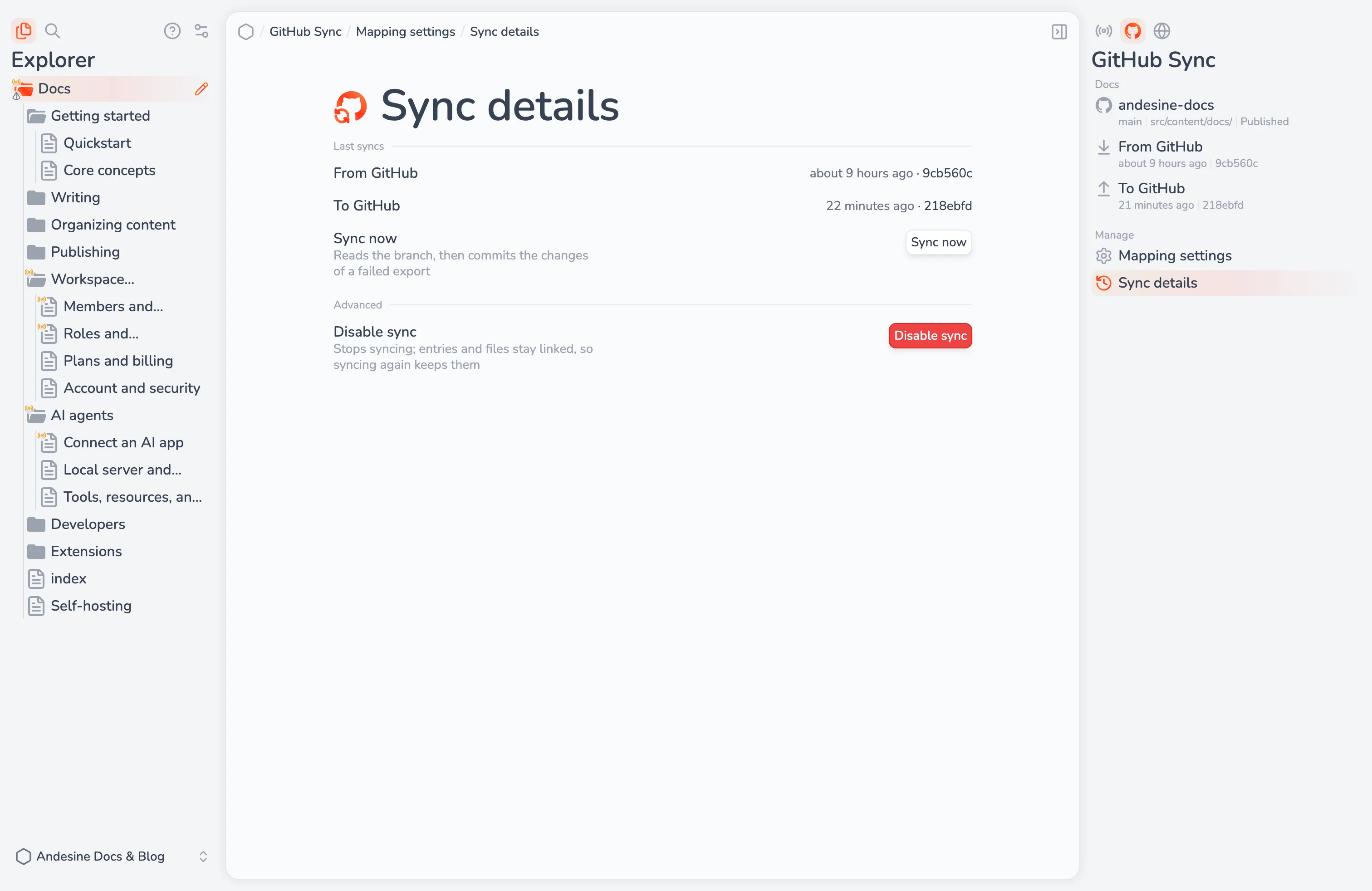
The Sync details page shows the last syncs and the files that the sync skipped, with the reason. To stop syncing, disable the sync there. The links between files and entries are kept, so if you map the same repository, branch, and directory again, the sync does not create the entries again.
Limits
Files with an element inside a paragraph are skipped.
Images must be PNG, JPEG, or WebP; other image files are skipped.